

- Alert Notifications: Deliver Issues as alert events to Flashduty channels, notifying responders through escalation rules
- Alert Grading: Customize alert priority based on error attributes such as user, page, or environment
- Data Filtering: Filter out noise data before Errors are aggregated into Issues, reducing unnecessary alerts
Enable Alerts
1
Enter Application Details
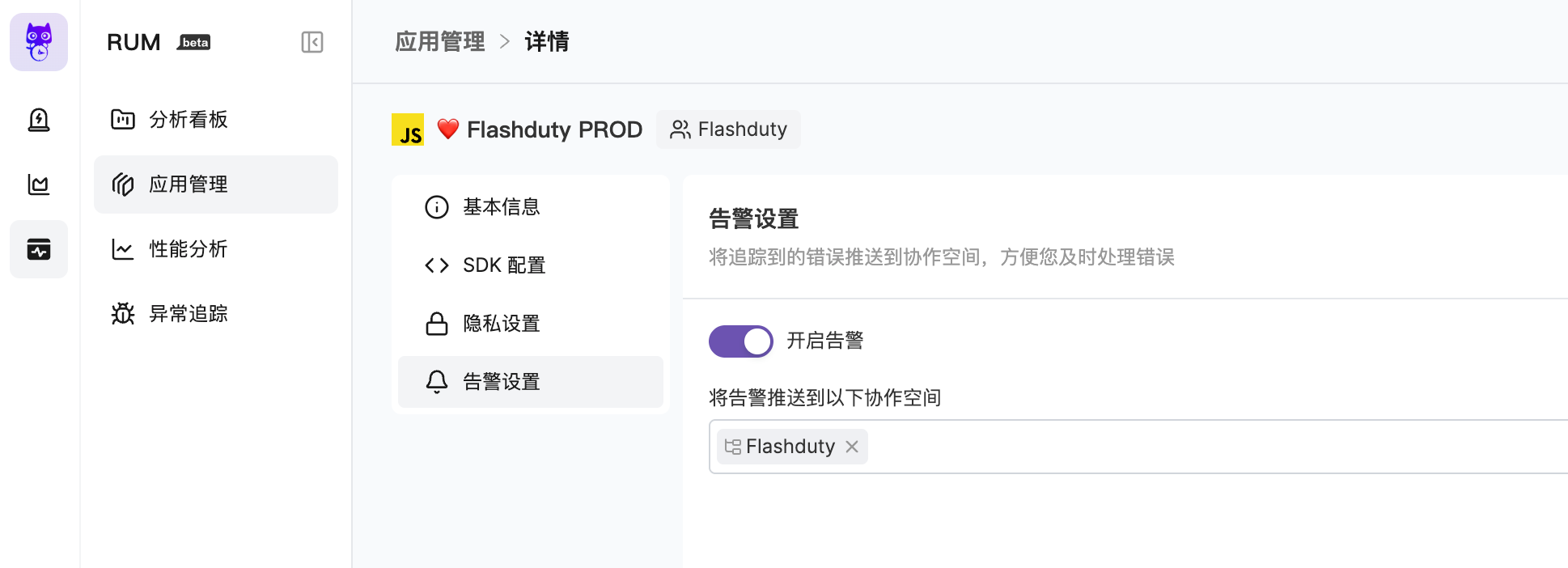
Go to “Application Details” - “Alert Settings” page
2
Enable Alerts
Turn on the alert switch and select multiple channels to deliver alerts to
3
Configure Notification Rules
Alert notification rules follow the escalation rules under the channel. You can set up responders for your team to assign alerts when they occur
Alert Trigger Conditions
- An Issue triggers an alert event, which is delivered to the channel
- Whether an alert notification is triggered depends on your integration configuration, noise reduction configuration, and escalation rule configuration under the channel
- When an Issue is closed, the system triggers a close-type alert event, and its associated incident may automatically recover
Alert Severity
Default Grading Rules
If no custom alert grading rules are configured, the severity of alert events triggered by Issues is automatically determined by the system:- Basic Judgment
- Scoring System
- Scoring Factors
Custom Alert Grading
You can configure custom alert grading rules in “Alert Settings” to set alert priority (P0 / P1 / P2) based on error attributes, enabling more granular alert control. Custom grading rules are evaluated when an Error is reported, producing a “preset priority”. When the Error is aggregated into an Issue:- New Issue: The Issue priority is determined by the preset priority of the first Error
- Matching existing Issue: If the Error’s preset priority is higher, the Issue priority is automatically upgraded (never downgraded)
- No rule matched: Default priority P2 is used
Rules are evaluated from top to bottom in priority order; the first matching rule takes effect immediately, and subsequent rules are not checked. You can drag and drop rules to adjust their priority order.
Supported Match Fields
Match operators support “contains” and “not contains”.
Configuration Examples
VIP user errors — immediate alert
VIP user errors — immediate alert
Set the highest priority for VIP user errors to ensure immediate response:
- Match condition: User ID contains
vip - Alert level: P0 (Critical)
Payment page errors — prioritized handling
Payment page errors — prioritized handling
The payment page is a critical business flow; related errors need priority handling:
- Match condition: Page URL contains
/payment - Alert level: P1 (Warning)
Production crashes — immediate alert
Production crashes — immediate alert
Production crashes require immediate response:
- Match condition: Environment contains
production, AND Is Crash containstrue - Alert level: P0 (Critical)
Data Filtering
Data filtering allows you to filter out unwanted noise data before Errors are aggregated into Issues. Filtered Errors will not participate in Issue aggregation or trigger alerts. You can add filter rules in “Alert Settings”. Each rule can have multiple match conditions with AND logic within the same rule. Supported match fields are the same as Custom Alert Grading.Integration with Flashduty
RUM alerts work in deep collaboration with Flashduty, forming a complete alert processing chain:
You can further process RUM alerts in the Flashduty Alert Pipeline, such as adjusting alert levels based on affected user count, suppressing repeated alerts by time window, or customizing alert title formats.
Further Reading
RUM Alert Noise Reduction
Typical scenario configurations to quickly reduce unnecessary alert noise
Alert Pipeline
Clean, transform, and filter alerts at the integration layer
Noise Reduction
Aggregate and suppress alerts at the channel level
Escalation Rules
Configure escalation rules to route alerts to the right responders